Handling custom Dota 2 skins cleanly starts with knowing which thing you are after: a cosmetic your account already owns, an official Workshop asset, or a local replacement that is unofficial. On a screenshot they can seem alike, yet ownership, updates and the account context differ for each.
Quick answer: official content arrives via the game or the Steam ecosystem, while a local replacement only alters what a single client draws. Make a backup before changing local files and note each path, keep a way to roll back and do not mistake a preview for owning something in your inventory.
Choose the cosmetic workflow before anything else
Stick to these labels every time:
- Owned item: linked to your Steam account and backed by a record in the inventory.
- Custom-game or Workshop asset: it arrives through a community or game setting that is supported.
- Local replacement: unofficial changes to files or to how the client renders.
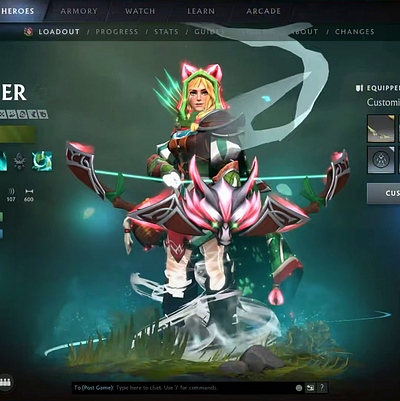
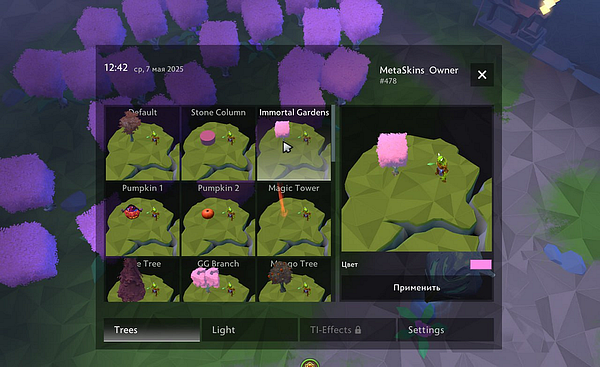
One and the same hero screenshot could come from any of the three. Looking at it will not reveal which path produced it.
Set up a clean point to restore
Ahead of editing any local file, write down the original path and copy it somewhere outside the game folder. Log the date, the build of the game and every change you made. A package you cannot restore with confidence is not ready to be tested.
Stay away from archives bundling an unrelated loader, requesting Steam credentials or concealing who published them. Calling something “cosmetic-only” expresses intent; it reveals neither what an executable does nor the permissions it takes.
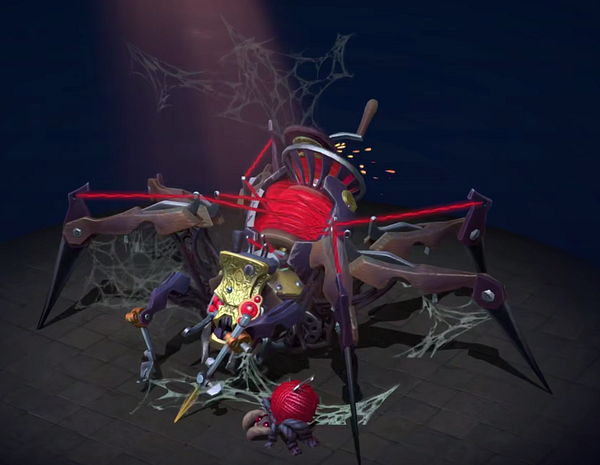
Look the package over before you apply it
No clever trick is required. What helps is a dull, careful list:
- Name the type of each file.
- Check the folders that the instructions intend to change.
- Find a dated note on compatibility.
- Make sure the removal steps mirror the install steps.
- Leave the original files alone until you understand the package.
Where the instructions leave out one of these steps, treat the claim as open. Never plug the hole with some random forum post or an outdated video.
Every patch changes the picture
Once Dota updates, a replacement that once seemed harmless may fail to render, clash with a different file, change other assets or leave old ones lying around. Hold off on launching a modified client, check the package date again and have the original files ready to restore. “It worked last month” proves nothing about compatibility today.
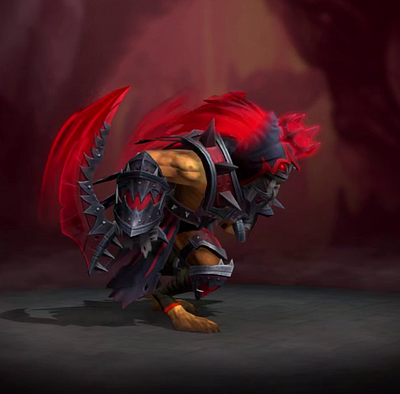
Uninstalling must be just as clear as installing
A workflow you can reverse exits in a few steps:
- quit the game;
- restore the original files from your copy;
- delete any leftover folders the package named;
- check that Steam’s usual file verification or reinstall path is still an option;
- write down what you restored.
Never wipe large folders on a hunch. When the changed files are unknown, rely on the official recovery path, not guesswork.
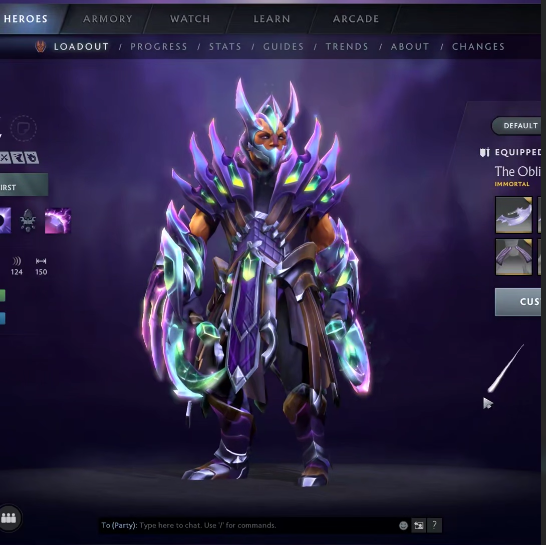
Where account policy draws the line
Owning an official item and how things look on your machine are separate matters. A local skin gives you no Steam inventory record, nothing of trade value and no assurance that other players see what you see. Even when the visual aim seems harmless, third-party modifications can bring security and account risk.
How Melonity fits in
Melonity’s public listing places visual categories next to utilities and scripts. Should you consider it as a cosmetic choice, hold its present scope, which build is covered and its removal instructions up against the checklist above. We disclose this mention as commercial; it is neither an independent safety test nor a statement about ownership.
Internal links
FAQ
Are Workshop items equal to custom Dota 2 skins installed locally?
No. Content from custom games or the Workshop is delivered in a supported way. A local replacement only changes how one client renders and grants no ownership in the inventory.
Will a local skin ever show in my Steam inventory?
No. Swapping visuals gives you no account entitlement, no item to trade and no record of a purchase.
Do I need a backup before applying a cosmetic change?
Yes. Hold on to the original files, note the build and list the exact paths so that you can restore everything.
What is the right move after a Dota patch?
Stop, check the compatibility notes and, should the package be outdated or the outcome look unclear, restore the original state.
Does a cosmetic-only label guarantee safety?
No. Check who publishes it, which permissions it wants, its update handling, the rollback path and the account-policy context.